Create or Find a Board
Choose Where to Start
Once you have registered and signed in, open Manage My Memberships from the navigation menu. You can return to this page later to create another board or join an existing one using the same account.
The page includes:
- My Board Memberships, showing boards you already belong to.
- New Board Guided Setup, for creating a board step by step.
- Create a New Board, for entering the board details and choosing its search privacy in one form.
- Find a board, for finding and joining an existing board.
If your organisation already has a board in OMyBoard, join that board rather than creating another copy. Ask its owner or an administrator for the board name or an invitation if you are unsure.
Create a New Board
You can create a board even if you are not an administrator on your current board. The person who creates the new board becomes its owner.
Choose one of the following creation methods. You do not need to complete both.
Use Guided Setup
In New Board Guided Setup, select Start Board Setup. The wizard takes you through:
- Naming the board.
- Optionally creating common board positions.
- Optionally inviting members.
The wizard requires a unique board name between 2 and 255 characters. It creates the board when you submit the name and move to the next step; the later steps set up that board.
See Setting Up Your Board for the complete wizard instructions and the default positions it can add.
Use the Create a New Board Form
Scroll to Create a New Board on Manage My Memberships.
- Check Board Owner. This shows your signed-in account; the form creates the board for you, not for another person.
- Enter Board Name, from 2 to 255 characters. Use a recognisable organisation name so other members can find the correct board.
- Optionally enter a Description, up to 500 characters. For example, describe the organisation, location, or purpose.
- Select a Board Search Privacy Setting using the choices below.
- Select Create.
If the form reports a validation error, correct the indicated field and select Create again.
Choose Board Search Privacy
This setting controls how other OMyBoard users find and join the board.
| Setting | Appears in Find a Board? | How people join |
|---|---|---|
| Public | Yes | Select Join Board to join immediately as a Viewer. |
| Semi-Private | Yes | Submit a request. The owner or an administrator must approve it. |
| Private | No | Use an invitation from the owner or an administrator. |
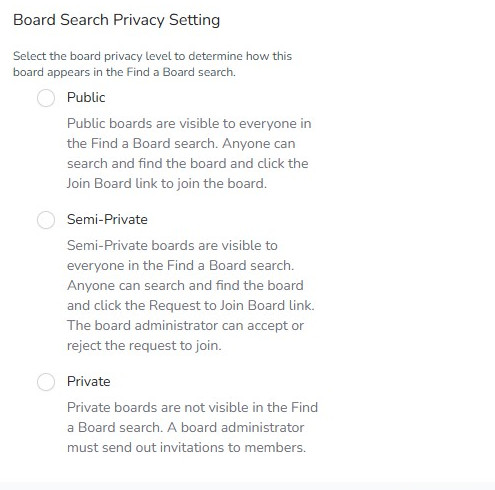
Choose Semi-Private if people should be able to find the board but you want to approve membership first. Choose Private if membership should be invitation-only.
What Happens After Creation?
When you create a board:
- You become its owner, with administrative permissions.
- It becomes your current board.
- A board group chat is created with you as its initial member.
- The direct creation form takes you to the new board's Dashboard. The wizard continues with its setup steps.
Creating a board does not copy the members, positions, documents, or events from your previous board. The direct form does not automatically invite people or create the wizard's default positions.
Next, review Board Details, add Board Positions, and invite people through Manage Members. See Setting Up Your Board for a suggested setup sequence, and Subscription Plans for the available features.
Find a Board
On Manage My Memberships, scroll to Find a board.
- Enter all or part of the board name in Search Boards.... The results update as you type.
- Check the Board name in the results. The Admin column displays administrators where available.
- Use the action beside the correct board to join or send a request.
The list displays up to five results per page. Use the pagination links to see more, or select the Board column heading to change the name sort direction.
Private boards and boards you already belong to are not shown. Select Nevermind to return to your current dashboard without joining a board.
Join a Public Board
Select Join Board beside the board. You are added immediately with the Viewer role, the board becomes your current board, and its dashboard opens with a confirmation message.
The search column is labelled Join as Guest, but the membership role you receive is Viewer. You have not become an administrator. If you need to contribute or manage the board, ask the owner or an administrator to review your role.
Request to Join a Semi-Private Board
Select Send Request to Join Board beside the board. The action changes to Request to Join Submitted while your request is pending.
The owner and administrators receive an in-app notification. You are not a board member yet and do not gain access just by sending the request.
An owner or administrator reviews the request in the board's pending invitations section on Manage Members and can approve or reject it. If approved:
- You join with the Viewer role.
- The board is set as your current board.
- You receive an in-app Request to Join Board Approved notification.
If you are waiting for approval, contact the board owner or an administrator. Creating a second board is not a way to access the existing board's records.
Join a Private Board
Private boards do not appear in search, even if you enter the exact name. Ask the owner or an administrator to invite the email address you use for OMyBoard, or to share a board invitation link if available. Follow the invitation instructions while signed in to the intended account.
Common Questions
Why Does Search Say No Boards Found?
Try a shorter part of the name and check the spelling. The board may be Private, or you may already belong to it. Check My Board Memberships before asking an administrator for help.
I Already Belong to the Board. How Do I Open It?
Use Switch Boards to make it your current board. You do not need to join it again.
Why Can I View the Board but Not Edit It?
Public joins and approved search requests start with the Viewer role. Ask the owner or an administrator for the appropriate role. Joining a board does not automatically assign you to a board position or committee.
Can I Change the Name, Description, or Privacy Later?
Yes. The owner or an administrator can update these in Board Details. Changing the privacy setting is not a substitute for reviewing existing members and their roles in Manage Members.