- OMyBoard Overview
OMyBoard Overview
Why OMyBoard?
OMyBoard gives volunteer boards a shared place to organise their members, responsibilities, meetings, documents, and communication. It is designed to help organisations such as community groups, youth programmes, sports associations, and churches keep their work organised as volunteers come and go.
A new board member should not have to reconstruct the organisation's history from old email threads or a departing volunteer's personal files. OMyBoard helps you keep the information with the board, while each person uses their own account to access it.
Use it to:
- Keep position descriptions, duties, and terms available for successors.
- Find board documents and meeting records in one place.
- Schedule events and review attendance responses.
- Communicate through announcements, conversations, and polls.
- Organise committee work where the board's plan includes committees.
- Belong to more than one board without maintaining separate accounts.
OMyBoard provides the tools; your board still decides how to use them. Keep records up to date, agree who maintains them, and follow your organisation's bylaws and policies when recording decisions.
Understand Your Account and Board
These terms will help you find the right information:
| Term | What it means |
|---|---|
| Your account | Your personal sign-in, profile, timezone, and board memberships. Do not share one login among the board. |
| Board | An organisation's workspace, with its own members, records, settings, and subscription. |
| Current board | The board selected in the application. Most pages, including Dashboard, Events, and Library, show this board's records. |
| Application role | Your access level on a particular board, such as Administrator, Contributor, or Viewer. |
| Board position | An organisational responsibility, such as President, Treasurer, or Secretary, with duties and term records. |
| Committee | A group within a board, using members from that board. It is not a separate board or account. |
{info} Your role and your board position are different. Assigning someone as Treasurer does not automatically make them an Administrator. Your role can also be different on each board you belong to. Owners and Administrators manage roles through Manage Members.
Check the board name before uploading a document, creating an event, or sending an announcement. Use Switch Boards in the board-name menu to work with another board. Your chat list and notification bell can include information from multiple boards, so check the message context there too.
Fix Your Program Continuity Issues
Frequent turnover can make it difficult to preserve an organisation's purpose, past decisions, and working practices. OMyBoard helps you build a record that incoming volunteers can consult:
- Use Board Details to keep the board's name and description current.
- Store bylaws, policies, plans, and other reference material in the Document Library.
- Record meeting discussions and decisions in Minutes associated with the event.
- Define Board Positions and duties, then record who holds each position and the relevant term dates through Manage Members.
For a handover, ask the departing member to update the relevant documents and duties before the successor takes over. The successor can then use their own account and appropriate role to work with those records. Ownership and payment responsibility need separate attention; do not assume assigning a new position holder transfers either.
See Board Details, Board Positions, Documents, and Manage Members.
Fix Your Repetition Issues
Recurring activities such as annual registration, fundraising, and seasonal planning are easier when the next volunteer has a starting point.
Keep instructions, checklists, reports, and lessons learned in the library rather than only in personal email. Give documents recognisable names and descriptions, and keep the current copy up to date.
For meetings, OMyBoard can start minutes from a template or carry forward selected minutes from earlier events. Review and update the resulting text; copying it does not mean the earlier decisions apply to the new meeting. See Minutes.
Where your plan supports Committees, use committee dashboards and document/event associations to organise an area of work, such as fundraising or programme planning.
{warning} Organisation is not the same as restricted access. A committee is not a private workspace. Board members can view committee dashboards, and associating a document with a committee does not hide it from other board members. Review the Documents and Committees guides before sharing sensitive information.
Fix Your Communication Issues
Choose the tool that matches the task:
| Need | Use |
|---|---|
| Tell selected members something without starting a discussion | Send Notification from the board or committee dashboard. Recipients read it in their bell. |
| Discuss a topic with board members | Chat. Board group chat is available across plans; creating extra groups or individual conversations requires the appropriate plan and permissions. |
| Ask selected members to respond to a question | Polls, with voting options and a closing time. |
| Invite people to a meeting or activity | Events, with event details and attendance responses. Email invitations depend on the board's plan. |
| Share a report, policy, or meeting attachment | Library or an event's attachments, where supported. |
| Preserve the meeting record | Minutes on the event. |
This keeps a document in a known place, a conversation in its thread, and a meeting record with the meeting rather than spread across unrelated email chains.
{info} Bell notices, email, and phone alerts are separate. Sending an in-app announcement does not automatically send an email or chat push alert. For chat alerts, enable notifications on each browser/device you use. See Notifications, Chat, and Push Notifications.
Fix Your Recruitment Issues
Clear position descriptions help potential volunteers understand what is involved before taking on a role. Keep responsibilities, current position holders, and term dates accurate so members can discuss vacancies and plan succession.
How a prospective volunteer joins depends on Board Search Privacy:
| Setting | How someone joins |
|---|---|
| Public | Find the board and join immediately as a Viewer. |
| Semi-Private | Find the board and request membership; the Owner or an Administrator must approve it. |
| Private | The board is not listed in board search; ask an Owner or Administrator for an invitation. |
A Viewer is a signed-in board member, not an anonymous visitor. Be comfortable with the information board members can access before allowing people to join.
The board's Public Page is a separate way to share selected information with people who are not signed in. Review what is published before sharing its address.
{warning} Board Search Privacy is not a master privacy switch. Discovery/joining settings, the Public Page, and individual document and event visibility settings serve different purposes. A Private board search setting alone does not turn off its Public Page.
See Create or Find a Board, Board Positions, and Public Page.
OMyBoard Features
Use these guides when you are ready for a particular task:
| Area | What you can do | Guide |
|---|---|---|
| Dashboard | Review members, positions and term-end dates, upcoming events, and recent documents. | Dashboard |
| Board setup and details | Name and describe the board, choose search privacy, and set it up for your organisation. | Setting Up Your Board, Board Details |
| Positions and members | Define duties, invite people, assign access roles, and record positions and terms. | Board Positions, Manage Members |
| Calendar and events | Schedule meetings and activities, choose attendees, and manage responses. | Event Calendar, Creating and Managing Events |
| Minutes | Write, save, review, and accept meeting minutes; generate a PDF when needed. | Minutes |
| Library | Upload, find, download, and maintain board documents and meeting attachments. | Documents |
| Committees | Organise committee membership, dashboards, events, and documents within a board. | Committees |
| Polls | Create questions for selected recipients and collect votes. | Polls |
| Notifications | Send selected members an announcement and read notices addressed to you. | Send a Notification, Notifications |
| Chat | Exchange messages through board, additional group, or individual conversations as permitted. | Chat, Push Notifications |
| Public Page | Share selected board information and public messages with visitors. | Public Page |
| Your account and memberships | Update personal settings and create, join, switch, or leave boards. | Profile, Manage My Memberships |
Find Your Way Around
After you select a board, start with its Dashboard:
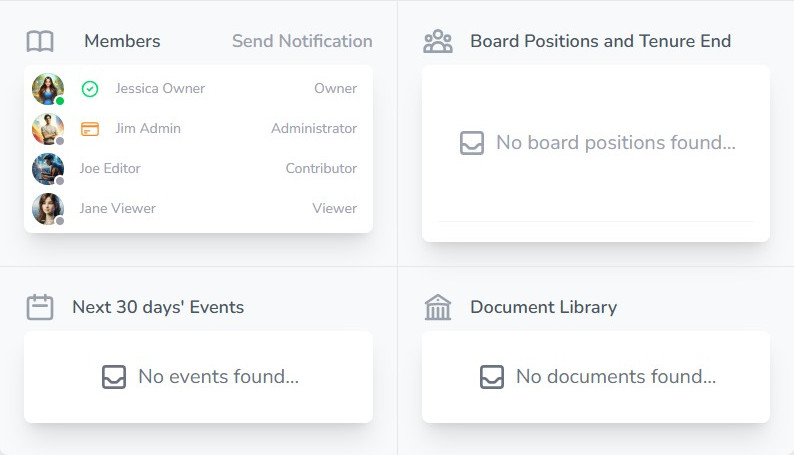
Example from a development board with test members and no positions, upcoming events, or documents yet. Empty panels are normal on a new board; your records and available controls will differ.
The panel headings are shortcuts to the corresponding areas. The main navigation provides Dashboard, Events, Library, Committees, and Polls:
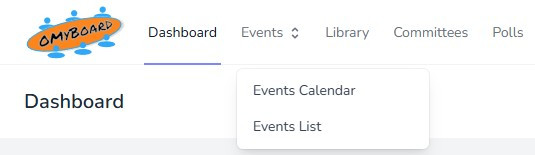
The board-name menu, chat icon, notification bell, and personal account menu appear farther to the right on a wider screen. On a smaller screen, use the three-line menu to reveal navigation links.
Use Support > Documentation to return to these guides. See Navigation for the full menu tour.
Roles and Subscription Plans
Two things affect which controls you can use:
- Your role and relationship to the record. Owners and Administrators manage board settings and membership. Contributors can create and maintain content within the permissions for each area. Viewers mainly read information and participate where allowed; committee membership can permit additional actions. Being able to open a page does not mean you can edit every record on it.
- The board's subscription. Plans affect allowances and features such as document storage, committees, event emails, notification history, additional chat types, quorum tracking, and minutes autosave.
The application displays the editing role as Contributor; some screens or older material may call it Editor.
Each board has its own subscription. A feature available on one board may not be available on another, even though you use the same account. Check the feature-specific guide and the board's subscription page for its available options and limits; see Subscription Plans.
How To Get Started
Join an Existing Board
- Register or sign in with your own account.
- If you have an invitation, follow its instructions using the account associated with the invited email address.
- Otherwise, open Manage My Memberships from your account menu and use Find a board. Join or request access as the board permits. Ask for an invitation if the board is Private.
- Confirm the correct board is selected, then review its Dashboard, positions, documents, and upcoming events.
- Set your timezone in Profile so event times are useful to you. If it is unset, the application warns that times use UTC.
- Open Chat and, if you want device alerts, follow Push Notifications on each browser/device.
If you joined as a Viewer but need to maintain records, ask the board Owner or an Administrator to review your role. Do not create a duplicate board just because the expected editing controls are missing.
Set Up a Board for Your Organisation
- Check whether the organisation already has an OMyBoard board.
- Open Manage My Memberships and choose either New Board Guided Setup or Create a New Board.
- Review the board's name, description, and search privacy.
- Define positions and duties, invite members with appropriate roles, and record their positions and terms.
- Add governing documents and upcoming meetings.
- Review Public Page settings and document/event visibility before sharing information more widely.
- Check the subscription if you need features beyond the current plan.
The creator becomes the board's Owner. Guided Setup creates a Public board; use the direct creation form if you need to choose Semi-Private or Private before creation. See Create or Find a Board and Setting Up Your Board for the full steps.
Use OMyBoard for a Meeting
A practical recurring workflow is:
- Before: create the event, select attendees, provide details, and attach supporting files where the plan permits.
- Prepare: start the minutes from a template or selected earlier minutes and update the agenda text for this meeting.
- During: record discussion, decisions, and actual attendance. Attendance responses before the meeting are not the same as who actually attended.
- After: save the minutes, complete your board's review and acceptance process, and download a PDF if needed.
- Handover: update reference documents and position duties when decisions change how the board operates.
Follow your board's own approval process. OMyBoard's Accepted minutes status and poll results do not replace the procedural requirements in your governing documents.
Where To Get Help
Use the guide links above or the documentation search to find a task. The Documentation guide explains article navigation, search, screenshots, and callouts.
If a control is missing, first check your current board, role, and board plan. Ask an Owner or Administrator about access. For application assistance, use the Support menu. To suggest an improvement, see Feature Suggestion.
© 2026 OMyBoard. All rights reserved.